Cloud Storage
ANSVIS supports integration with external storage services for uploading captured media (images/videos).
This feature enables ANSVIS to send media data to configured storage platforms such as AWS S3, Google Cloud Storage, or a custom HTTP endpoint.
This configuration is used by HTTP Trigger when user select Cloud Image Storage type
- ANSVIS uploads media to the configured storage
- The generated media link can be used in event payloads or notifications
To access this feature, go to Settings → Centralised Management → Image Storage
AWS S3 Configuration
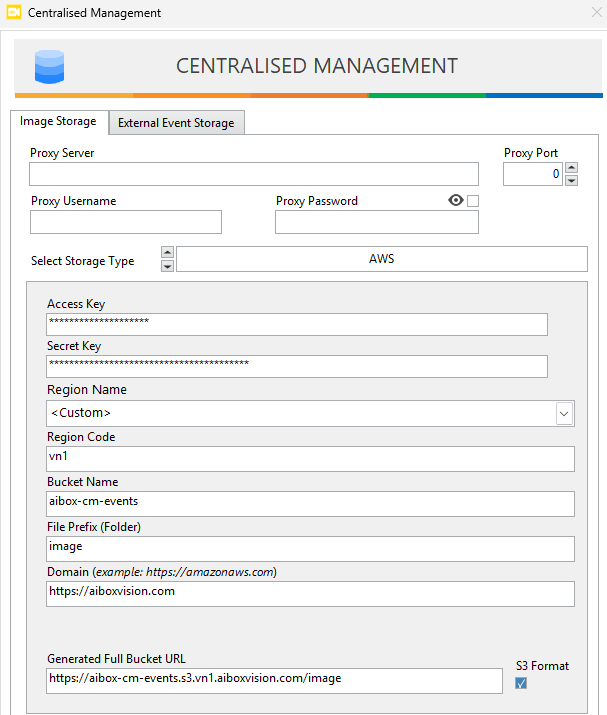
Fill in the required fields:
Access Key / Secret Key– AWS credentialsRegion Name– Target regionBucket Name– S3 bucket for storing mediaFile Prefix (Folder)– Folder path inside bucketDomain– Custom or default S3 domain- Tick/Untick the
S3 formatcheckbox to switch between URL format (DNS style or Path style)
ANSVIS will automatically generate the full upload URL based on the configuration.
Google Cloud Storage Configuration
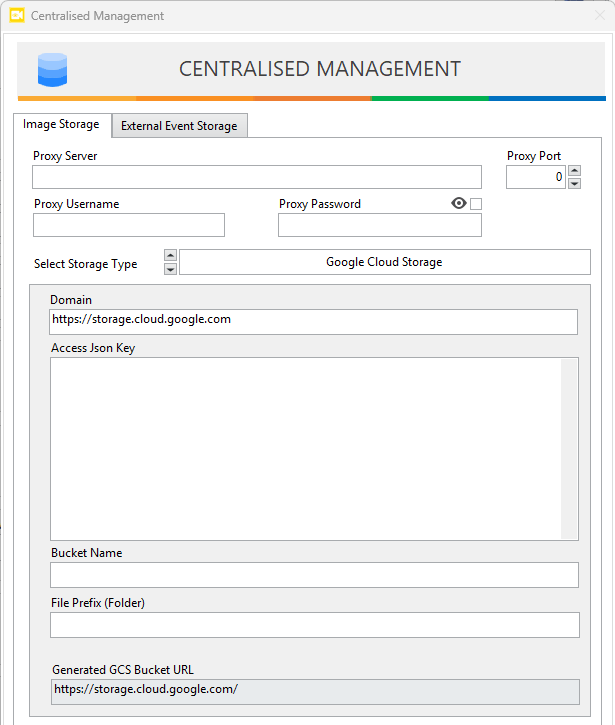
Fill in the required fields:
Domain– GCS endpointAccess JSON Key– Service account credentialsBucket Name– Target storage bucketFile Prefix (Folder)– Folder path
ANSVIS will generates the full bucket URL for media access
Web Server Endpoint (Custom Storage)
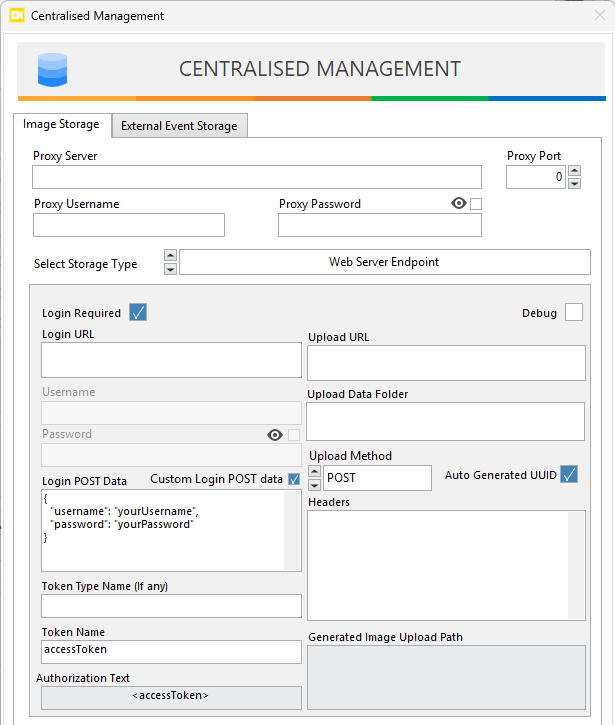
Configure a custom HTTP endpoint for media upload.
Authentication (Optional)
Enable Login Required if the upload endpoint requires authentication. When enabled, the following fields become available:
Login URL– Endpoint used for authentication- Use the
Custom Login POST datacheckbox to switch between credentials options: standard Username / Password , OR Custom Login Payload Token Type Name(if any) – Type of token returned by the serverToken Name– Token field name (e.g., accessToken)Authorization Text– Format used to attach token in request headers
These settings allow ANSVIS to authenticate and retrieve a token before performing upload requests.
Upload Configuration
Defines how media is sent to the server:
Upload URL– Endpoint for media uploadUpload Data Folder– Target folder/path on serverUpload Method– HTTP method (typically POST)Headers– Custom HTTP headers (if required)Auto Generated UUID– Automatically generate unique file names
Additional Options
Debug Mode – Enables detailed logging for troubleshooting upload and authentication flow
Apply & Test Connection
After configuration:
- Click
Applyto save settings - Click
Test Connectionto verify upload functionality
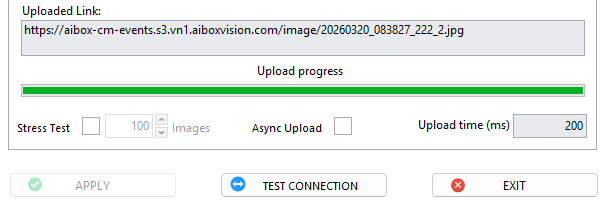
Test Options
ANSVIS provides built-in tools to validate upload performance:
- Test Upload
- Sends a sample image
- Displays uploaded link
- Stress Test
- Upload the selected image multiple times
- Evaluate throughput and stability
- Upload Mode
- Sync (default) – Sequential upload
- Async – Parallel upload
- Upload Time (ms): Displays time taken for upload