Rule Type
A rule is a set of conditions that defines and triggers an event of the AI Task. To create a rule:
- Click the
+button - Select rule type from the
Rule Typedrop-down list
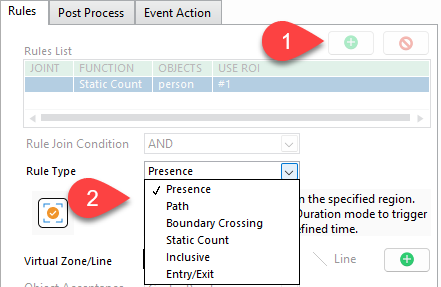
Each rule type comes with dedicated parameters for futher configuration
Presence rule
Detects if object(s) are present within a specified region..
-
The
Every Detectiontype will trigger an event in every frame it detects the object.
-
The
Object Appearingtype will trigger only once when the object appears. Every re-appearances will be triggered again
-
The
Object Disappearingtype will trigger an event when the object appears then disappears from ROI. This event will contain 3 images of the object: its first appearance, its last appearance, and when it dissapears from sight. Every re-appearances will be triggered again
-
The
Durationtype will trigger an event when the object is maintained in ROI within the duration limit. Every re-appearances will be triggered again. Noted that this type depends on a stable and continuous tracking ID—if the ID flickers, disappears, or changes, the rule will reset the duration.
Path rule
Detect object (same ID) travelling over a specific path defined by a Start ROI and End ROI.
You can configure the rule to trigger an event only if the total amount of time the object moves from Start to End ROI is within the duration limit.

Boundary Crossing rule
Detect the objects when its bounding box's centre point crossing through a defined boundary.

-
The
Trigger Whenoption will only trigger an event each time X objects cross the boundary. -
The
Global Start Valueis the start value of the count. It is added to the live count of objects that cross the boundary. -
Due to variations in camera angles, an object’s bounding box may fluctuate in size, causing its calculated center point to shift unexpectedly. This can lead to false or unstable detections.
TheLastPointsToConsiderparameter helps address this issue by storing the center points of up to the last 5 detected frames. The system then computes the average of these center points, resulting in smoother and more stable bounding boxes. This averaging process reduces jitter and significantly improves detection accuracy.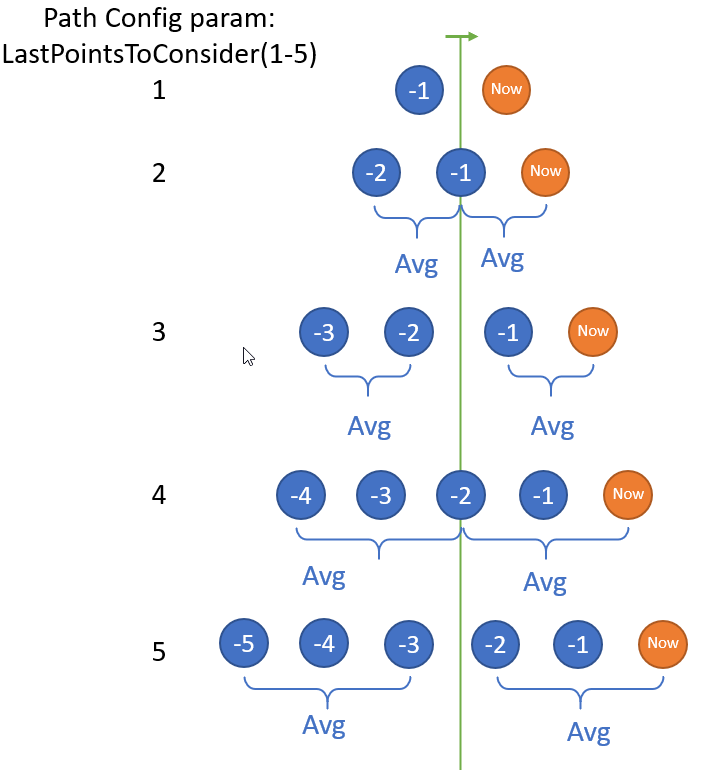
Static Count rule
Trigger an event based on the number of objects in the image.
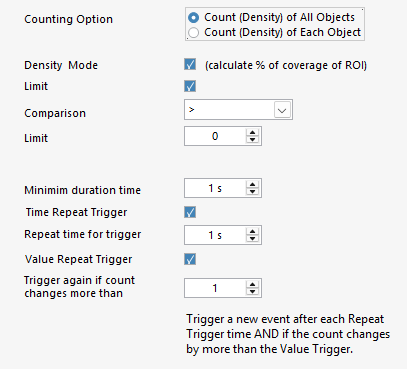
Counting Option: Specify the counting method for for all object classes or each object class
Density mode: Switch from counting mode to measuring the bounding boxes's coverage percentage in the image
Limit: Generate event when the count value is within a specific limit and duration
Time Repeat Trigger: How often you want to repeat trigger (within the limit if enabled)
Value Repeat Trigger: Only repeat trigger if the count change more than X value (can only be disabled when limit is enabled)
If both Time Repeat Trigger AND Value Repeat Trigger are enabled, then the count value must pass both settings
Inclusive rule
Trigger event based on the position of the main object (from object list) and inclusive objects.
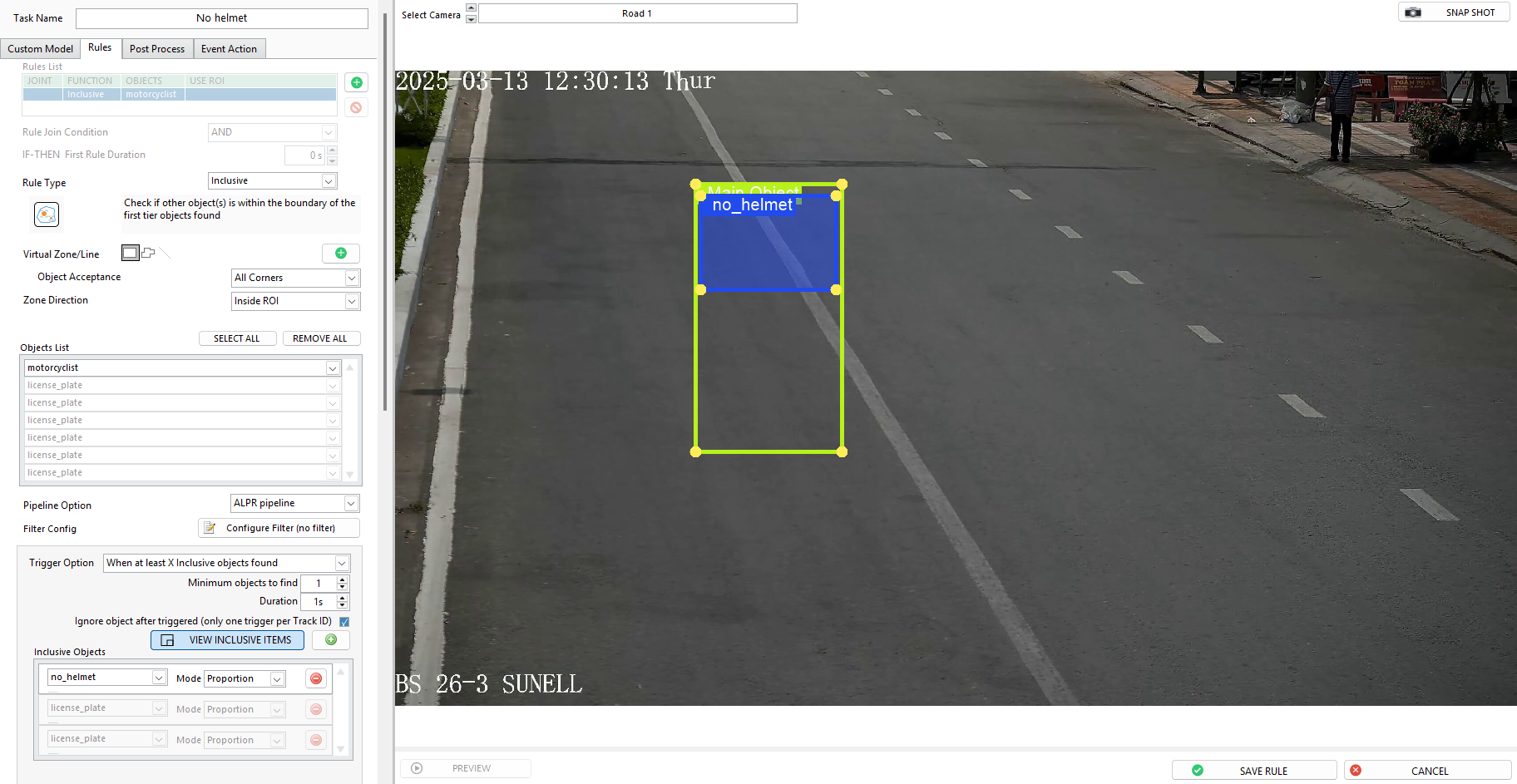
- Select the object from
object listas main object - From the extra setting, press
+button to add inclusive objects - Use the provided bounding boxes to adjust the position between main objects and inclusive objects.
- Mode: The position condition between main objects and inclusive objects
Proportion: the position between the main object and the inclusive object is proportional, regardless of object sizeAbsolute: the position and the size between the main object and the inclusive object must be the exact same as the bounding boxes.
- Trigger Option:
When at least X inclusive objects are found: Event is triggered when at least X inclusive objects are detected.Every time inclusive data changes: Event is triggered only when the number of inclusive objects changes compared to the previous event.Minimum objects to find: Set the minimum number of inclusive objects to trigger eventDuration: How long the inclusive object maintained in the ROIIgnore object after triggered: Enable to only trigger once per object ID. Disable to trigger every detection after object pass the duration threshold
Entry/Exit rule
Count the objects crossing through each Entry ROI or Exit ROI, separately.

-
You can add up to 3 entry ROIs and 3 exit ROIs
-
The
Global Start Valueis the start value of the Entry count. It is added to the live count of objects that cross the boundary
Static Object Duration
Detects non-moving objects by counting how many frames they are detected within a set time window.

Duration Limit(s):The time window (convert to frames based on the camera FPS) that the system will count the detected frames.
Threshold: The minimum ratio between the detected frames and the time window. When the result is greater than or equal to the minimum ratio, the system will trigger an event
Reset Time(s): The time (second) that the system stop sending next event
- If the camera is 10 FPS and the duration limit is 8 seconds. Then, the time window will be
8s x 10FPS = 80 frames. This means the system will count how many frames fire is detected among 80 frames window. - Threshold = 40%, meaning that if there are at least
80 frame * 40% = 32 frameswith fire detected, the system will trigger an event
Stable Object Appearing
Trigger when an object reaches a specified number of detections, regardless of whether those detections are consecutive. It serves as an alternative to the presence rule (which relies on continuous duration), making it suitable for scenarios where maintaining a stable object ID is not feasible.

Required Detection Count: The total number of detections needed to trigger the rule
Allow Detection on Early Disappearance: A fallback threshold for triggering an event if the object disappears before reaching the required detection count. If the object has been detected at least a minimum count, the system can still trigger.
Minimum Detection Count: The minimum number of detections required for an early-disappeared object