Conditional Execution for AI Task
By default, the AI Task may run continuously, consuming system resources. To optimize performance, you can configure it to execute only at certain conditions, rather than having it to be always executing, which is called Input Trigger
You can access this function either from the Prebuilt AI Task UI or Custom AI Task UI
- Ensure that the trigger settings do not conflict with any active rule configurations.
Periodic Trigger
The Periodic Trigger option allows the system to execute a task at regular intervals automatically.
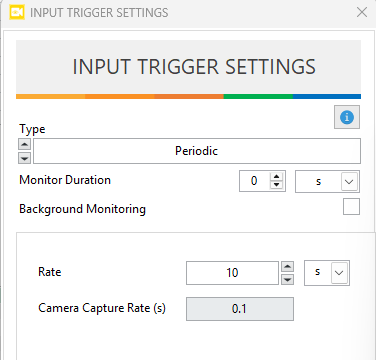
- Rate: How often the system sends a trigger to execute the task. (Note: the rate cannot be faster than the camera acquisition rate)
- Monitor Duration: How long the task can run after being triggered.
- If the monitor duration is lower than rate, the task will stop all process for the remaining time until the next trigger.
- If the monitor duration is greater or equal to rate, it's similar to running the task continously
- If the monitor duration = 0, the task will only run 1 frame.
- Background monitoring: If enabled, the task will still run in the background, but not generate events, the purpose is to monitor and improve object classification and tracking ID overtime so when the task is executed, you may have a better object detections.
Rate: 10s
Monitor Duration: 6s
-> Each 10s, the system triggers the task to run. During this time, the task will run for 6s, the remaining 4s the task will stop processing until the next trigger.
Schedule Trigger
The Schedule Trigger option allows you to execute a task based on a predefined day and time of the week.
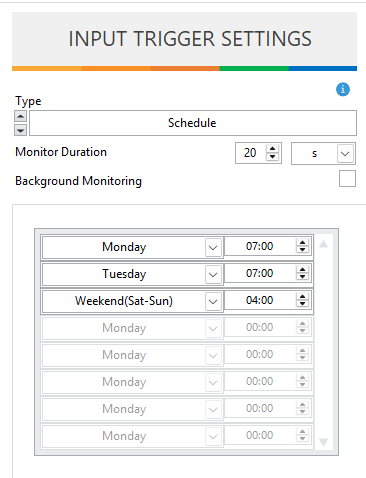
- Day & Time list: Define the exact days and times when the system should send a trigger to execute the task. You can add multiple entries to cover different days or time slots.
- Monitor Duration: How long the task can run after being triggered. If the monitor duration = 0, the task will only run 1 frame.
- Background monitoring: If enabled, the task will still run in the background, but not generate events, the purpose is to monitor and improve object classification and tracking ID overtime so when the task is executed, you may have a better object detections.
Day & Time: Monday 07:00
Monitor Duration: 10 minutes
-> At 07:00 on Monday, the system triggers the task to run. The task runs for 10 minute and then stops processing until the next trigger.
Hardware (DAQ) Trigger
The Hardware (DAQ) Trigger option allows the system to execute a task based on signals from Digital Inputs (DI) connected through a DAQ device on the same network as the ANSVIS Server.
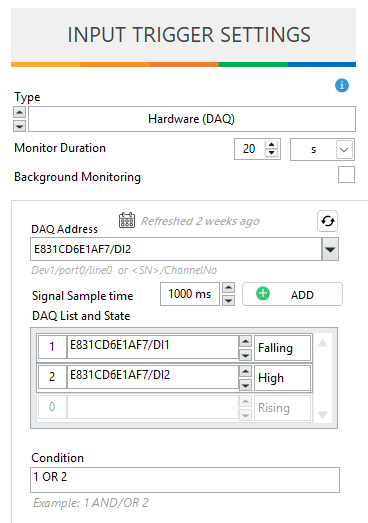
- DAQ Address: Scan and select avaliable digital inputs (DI) on the network. Press
Addto include the DI to the list. - Signal Sample Time: How often the system will check for the DI state
- DAQ List and State list: Specify the DI states that will trigger task execution:
- Rising: DI changes from Low → High when being checked
- Falling: DI changes from High → Low when being checked
- High: DI is High when being checked
- Low: DI is Low when being checked
- Condition: If multiple DI states are added, combine them using logical operators:
AND,OR, and parentheses( )for complex conditions. - Monitor Duration: How long the task can run after being triggered. If the monitor duration = 0, the task will only run 1 frame.
- Background monitoring: If enabled, the task will still run in the background, but not generate events, the purpose is to monitor and improve object classification and tracking ID overtime so when the task is executed, you may have a better object detections.
DAQ Address: E831CD6E1AF7/DI1
Signal Sample Time: 500 ms
Condition: E831CD6E1AF7/DI1 = High
Monitor Duration: 10 seconds
-> The system checks DI states every 500 ms. If the DI1 is High when being checked, the task runs for 10 seconds, and then stops processing until the next trigger.
Application Trigger
The Application Trigger option allows the system to execute a task when it receives an HTTP trigger from an external application.
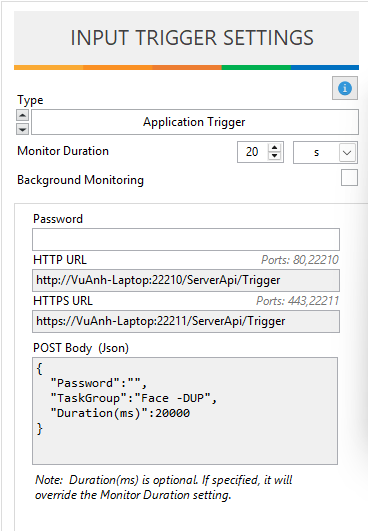
- Password (optional): Set a password for the RESTful API to secure external trigger requests.
- HTTP/S URL and POST body: Use the endpoint and request format that the system provides for sending application triggers.
- Monitor Duration: How long the task can run after being triggered. If the monitor duration = 0, the task will only run 1 frame.
- Background monitoring: If enabled, the task will still run in the background, but not generate events, the purpose is to monitor and improve object classification and tracking ID overtime so when the task is executed, you may have a better object detections.
Monitor Duration: 10 seconds
-> When the system receives a valid HTTP POST request from the external application, it triggers the task to run for 10 seconds, then stops until the next trigger.
Motion Trigger
The Motion Trigger option allows the system to execute a task when motion is detected by the camera.
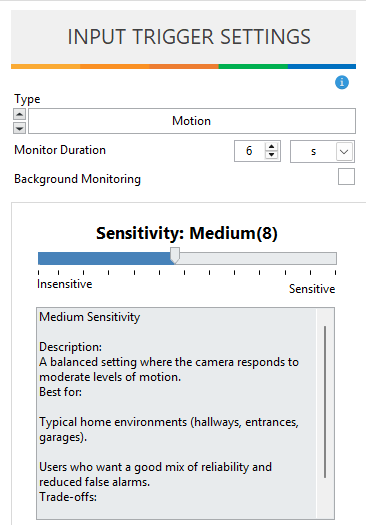
- Monitor Duration: How long the task can run after being triggered. If the monitor duration = 0, the task will only run 1 frame.
- Background monitoring: If enabled, the task will still run in the background, but not generate events, the purpose is to monitor and improve object classification and tracking ID overtime so when the task is executed, you may have a better object detections.
- Sensitivity: Adjusts how sensitive the system is to motion detection.
- Higher sensitivity detects smaller movements.
- Lower sensitivity reduces false triggers from minor changes.
Sensitivity: High
Monitor Duration: 20s
-> When motion is detected, the system triggers the task to run for 20 seconds, then stops until new motion is detected.